Notecards and Reminders
Your server will not only send out products but also reminders and notification notecards to your team when certain events/things take place.
Renaming Default Notecards
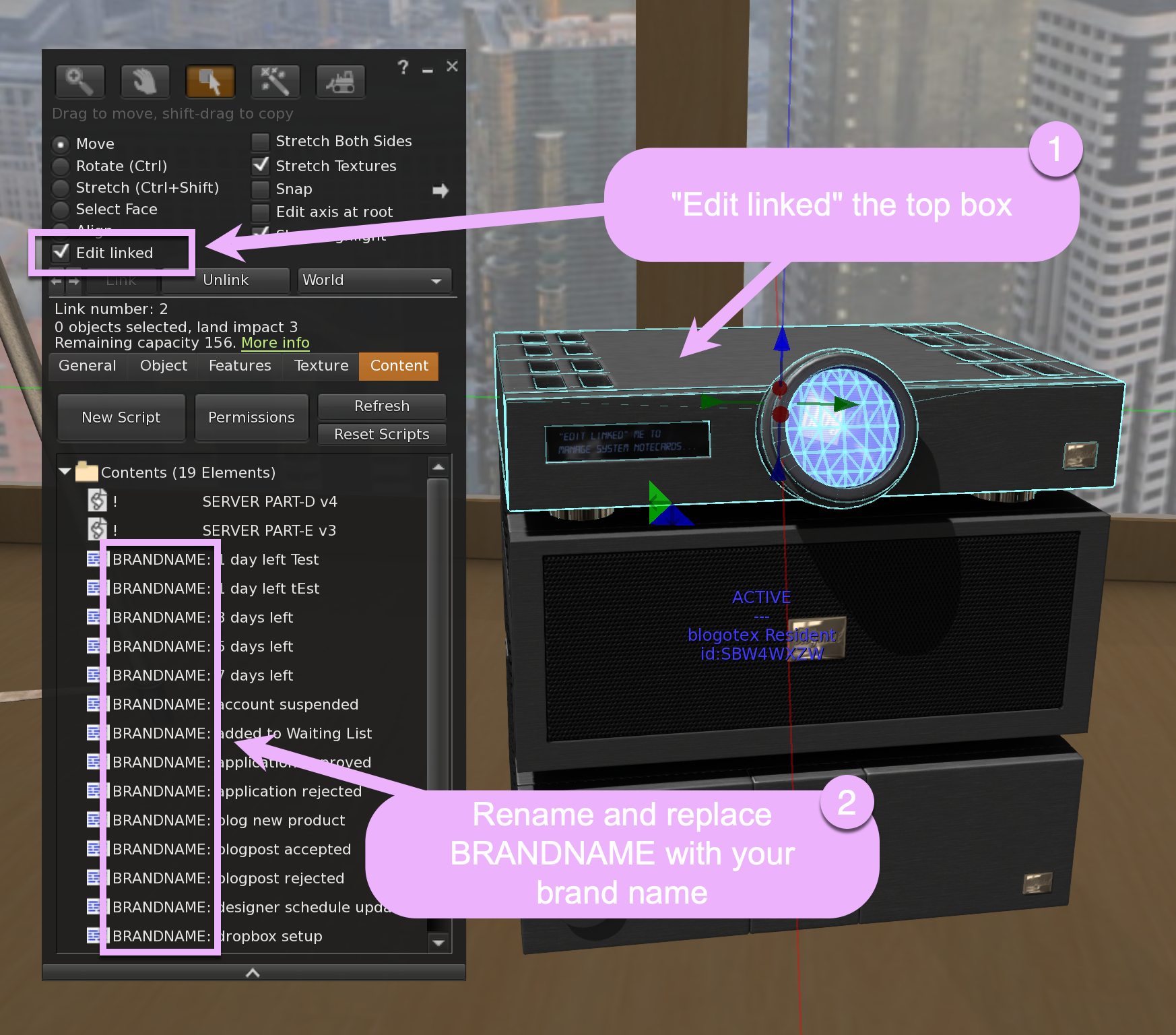
Please access your server's top box contents by clicking Edit and selecting edit linked. Only top box should be highlighted as shown on the following picture. That's where all the system notecards are stored. As you can see - by default they all are named starting with BRANDNAME. Please rename each notecard and replace BRANDNAME with your actual brand name, so it makes sense when your team receives such notecard they can understand which brand it is coming from. Once renmaing is finished, you can exit the edit mode.
Retrieving Notecards
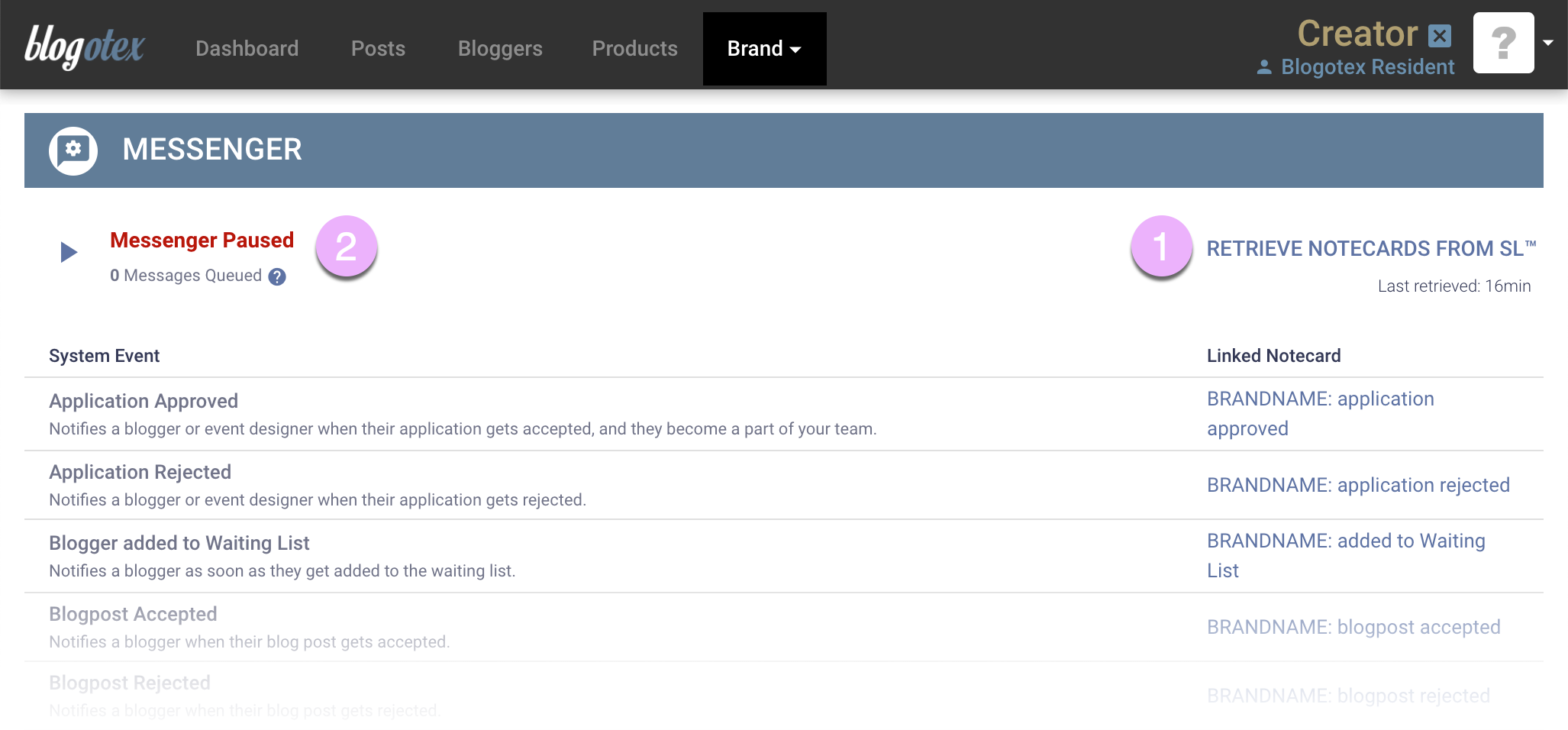
Next, please go to your brand inside Blogotex.com and navigate to Brand->Messenger.
- Click Retrieve Notecards from SL™. This will fetch all the notecard names and auto-assign them to the matching Blogotex events accordingly.
- Click the Play button to start the messenger.
Reassigning and Muting
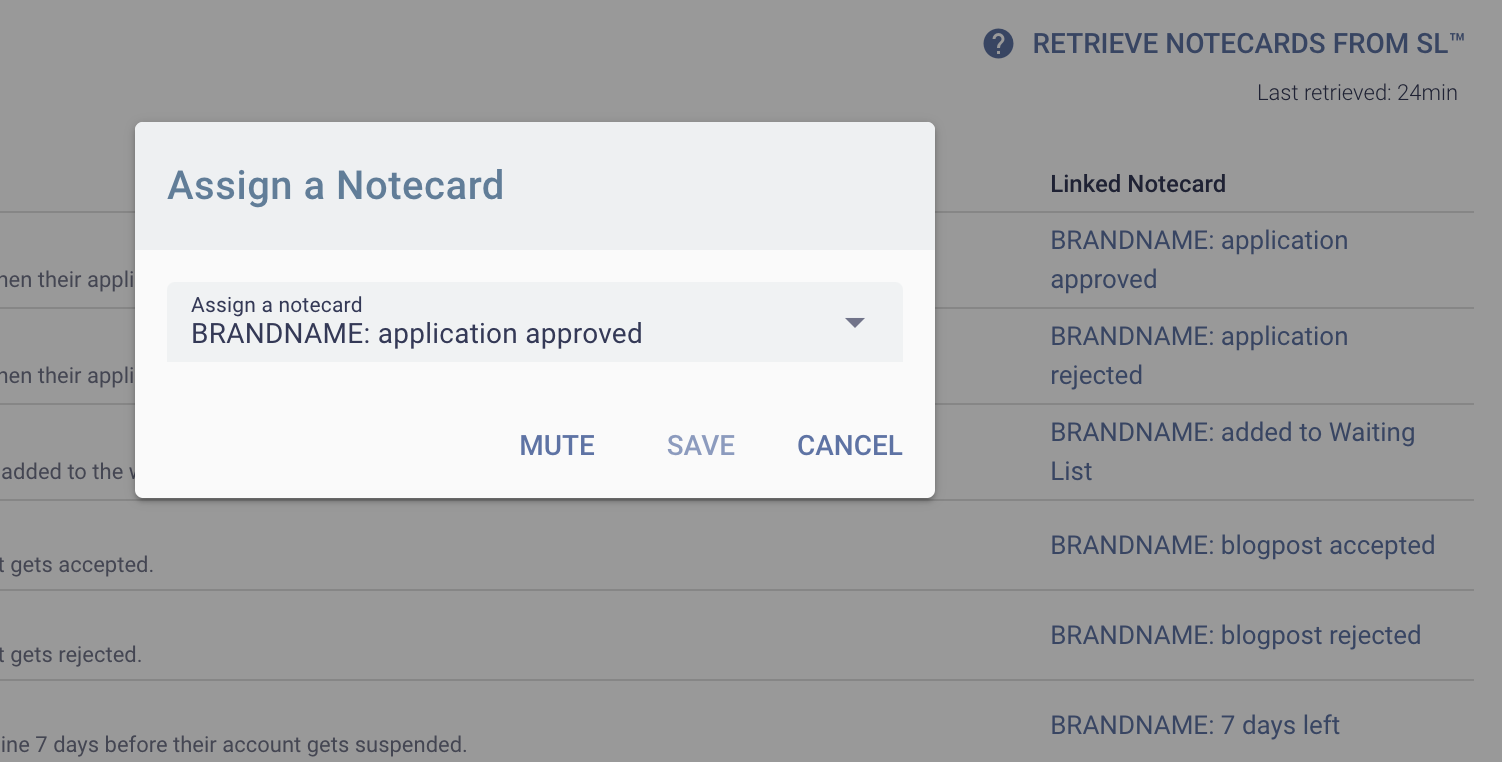
Optionally, for any system event, you can reassign a different notecard or mute it so it doesn't get sent out. Clicking on the notecard name in the Linked Notecard column will present you with a menu where you can do this.