Device Replacement Guide
Please follow this guide if:
- Your Server or Dropbox has been lost and you need a replacement.
- Your Server or Dropbox is malfunctioning, or scripts have been corrupted or accidentally deleted.
- You need to upgrade your Server to a newer version.
Get Fresh Device
Log into Blogotex, select the brand or event you want to work with, and then navigate to the Devices section. For brand owners, this is Brand->Devices; for event owners, it's Event->Devices; and for designers, it's simply Devices. Click the Redeliver link at the bottom of the section and receive a fresh device inworld.
Prepare the Inventory
Let's prepare the items to be placed in your new device. Create a folder in your inventory. Follow one of the two listed scenarios:
- SCENARIO 1: Your old device is still accessible. Copy all products from the device's root prim (make sure you do not include device scripts) into the newly created inventory folder. For servers, additionally create another folder in your inventory and back up all your notecards by editing your server in "Edit linked" mode and choosing the top box. Copy all the notecards into your notecard backup folder.
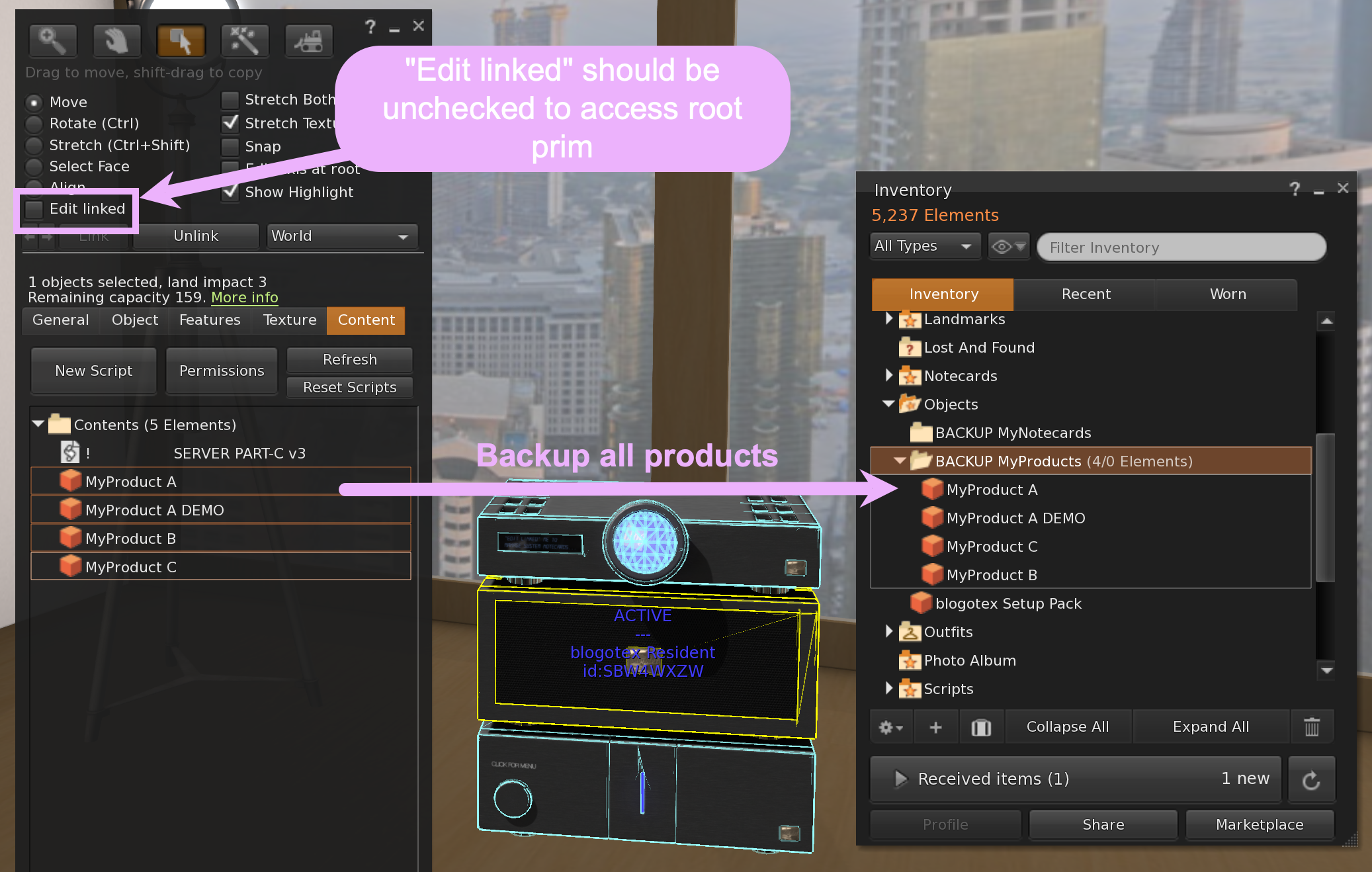
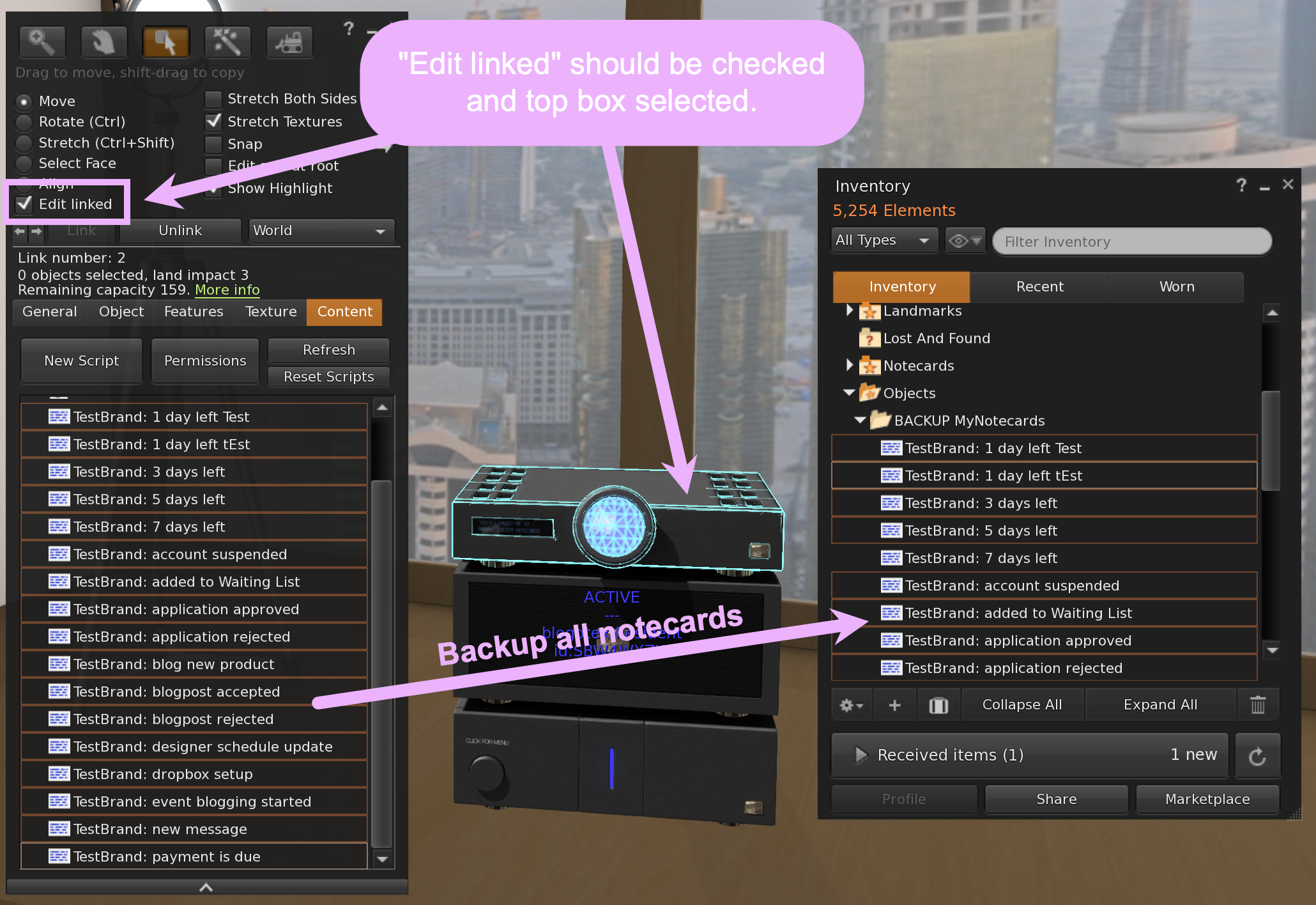
- SCENARIO 2: Your old device is lost. Check the
Productssection and try to re-collect all the items that were previously in your device and put them all into the newly created folder.
Rezz Your New Device
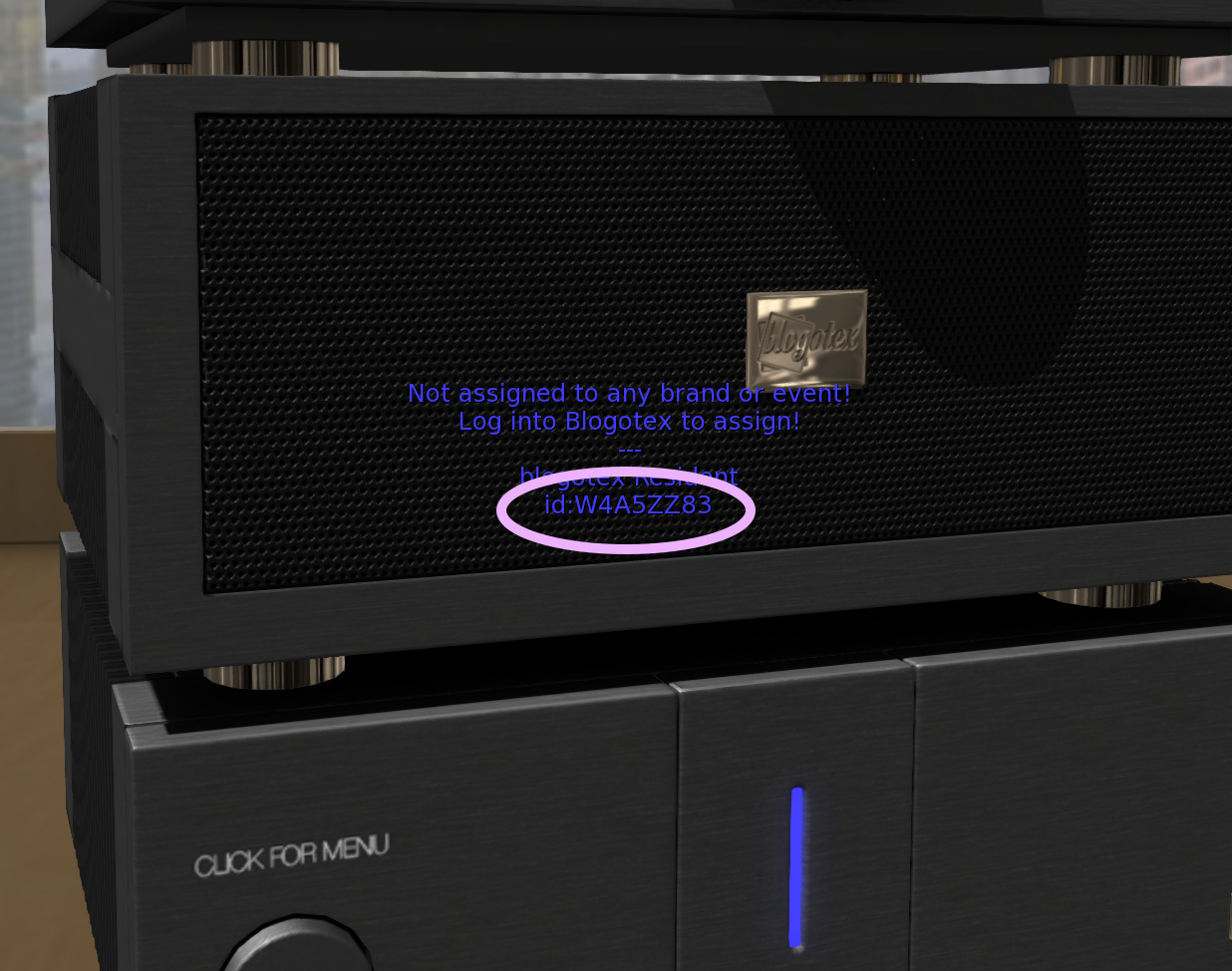
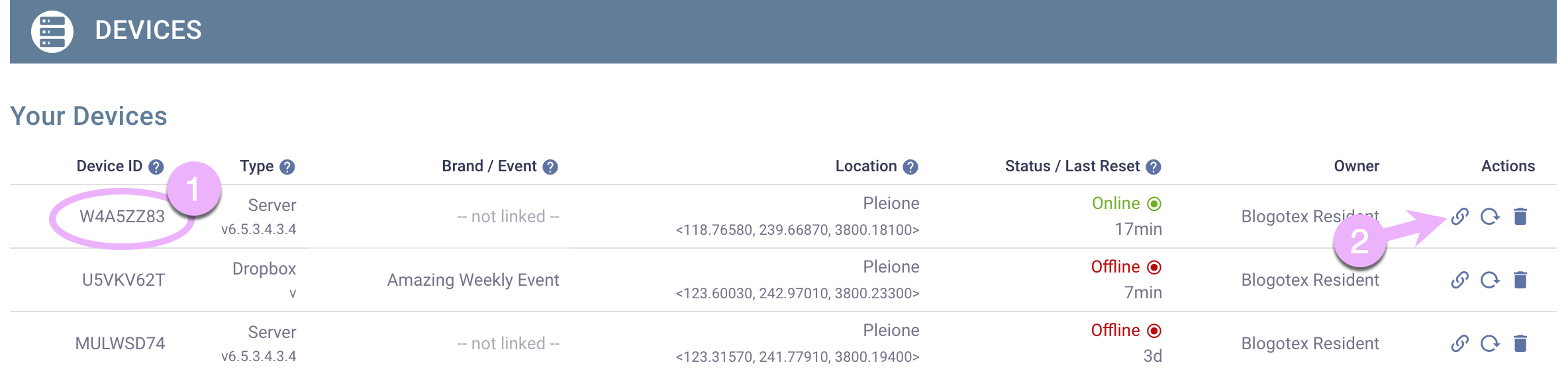
Rezz your new device and make note of its ID (it is displayed on the floating text over the device). In our example, it is W4A5ZZ83.
Unlink Old Device
From within the Blogotex Devices section:
- Find the device currently linked to your brand or event. In our example, we're looking for the device assigned to TestBrand.
- Click the link button.
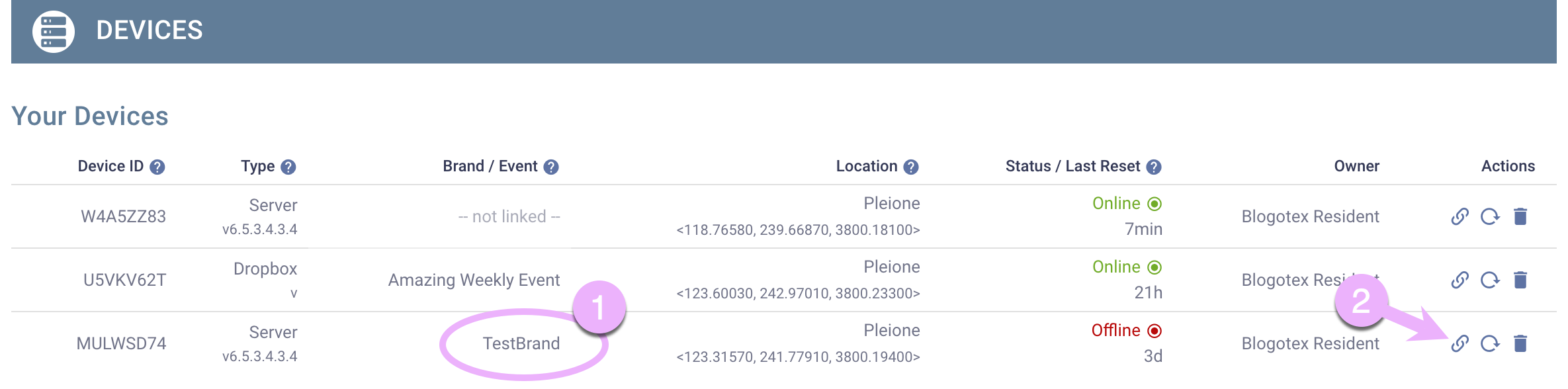
- In the popup, press Unlink.
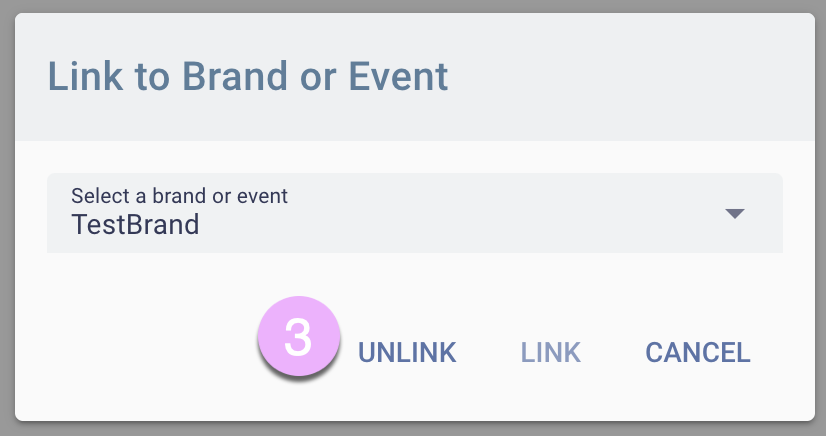
This will unlink the device from TestBrand so we can assign a new device in the next step.
Link New Device
Now that we have unlinked the old device from our brand, let's link a new one.
- Search for the device that matches your new device's ID (remember we noted it once we rezzed it).
- Click the link button.
- In the popup, select TestBrand.
- Click Link.
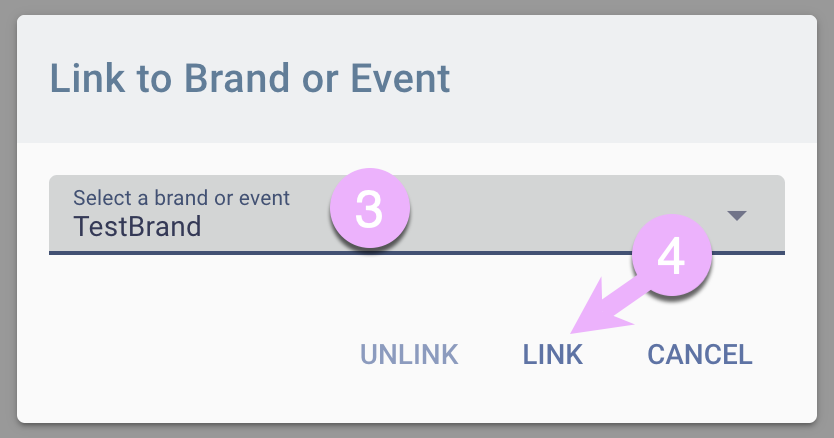
Your new device should now be linked with your brand or event, and we are ready to continue with the next step.
Restore Backed Up Inventory
Place all the saved products from your inventory backup folder into your device's root prim. For servers, additionally "Edit linked" the top box, delete all default notecards (do not remove scripts), and place your backed-up notecards from your inventory's notecard backup folder.
Update from Within Blogotex
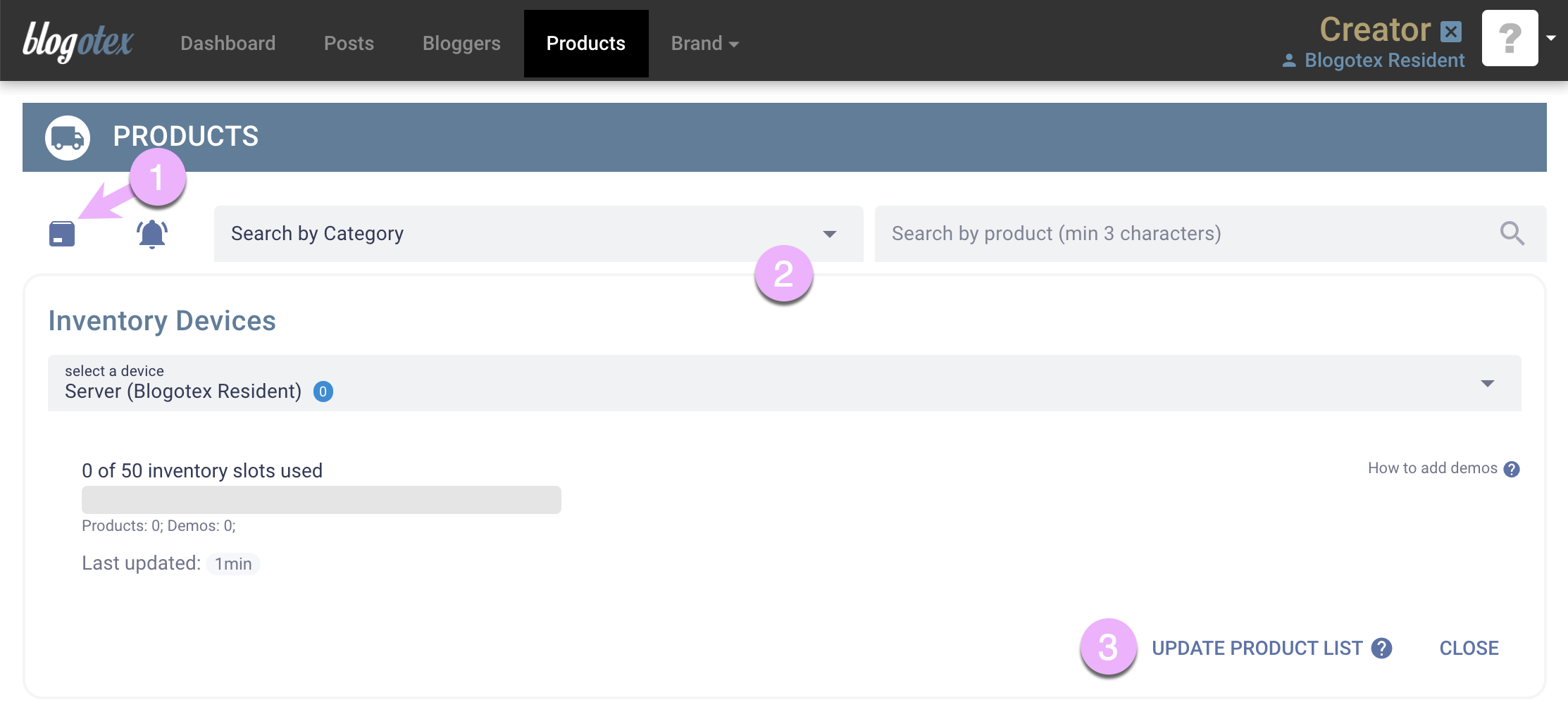
Finally, go to Products.
- Click the box icon.
- This will expand the Inventory Devices pane.
- Click the Update Product List button to update your Blogotex.
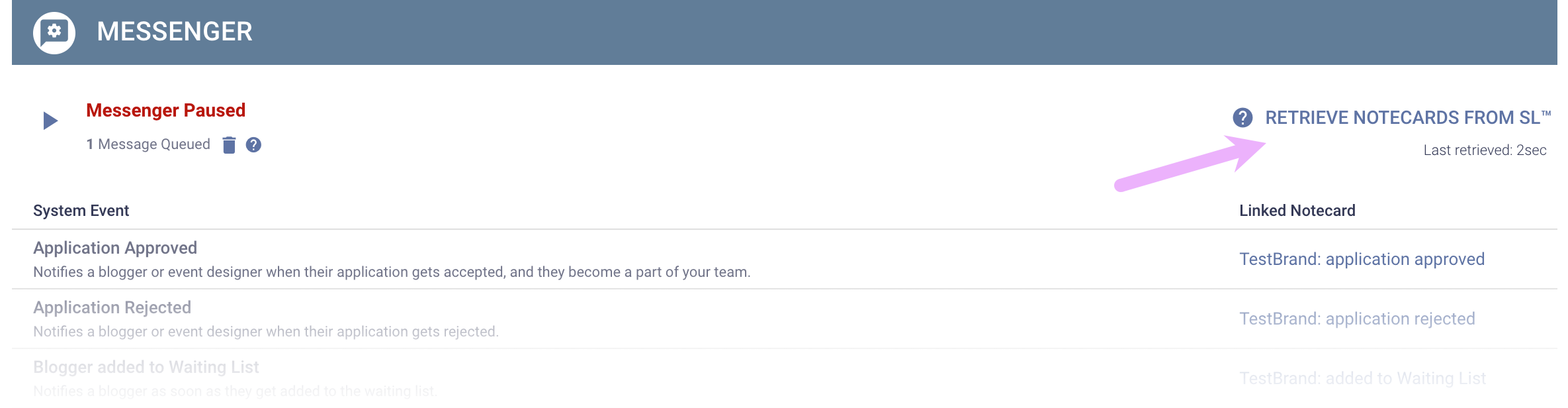
If your device is a server, navigate to Brand->Messenger or Event->Messenger and click Retrieve Notecards From SL™.
Delete Your Unassigned Device
And finally go back to Devices section and delete old device that is now showing -- not linked --.